
DIKSHA Portal Mandatory NIPUN Training: Login, Profile Update and Course Completion Guide
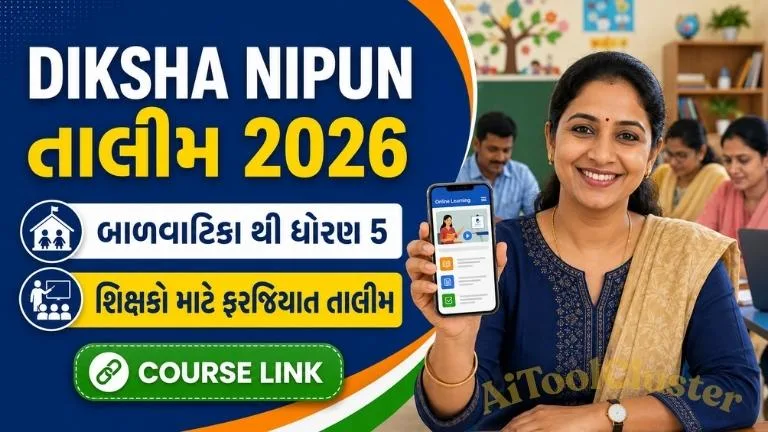
The DIKSHA Portal training link has been shared for personnel associated with foundational education and the NIPUN programme. As per the instructions circulated with the course link, eligible teachers and education officials should log in to the portal, update their profiles and complete the assigned online training.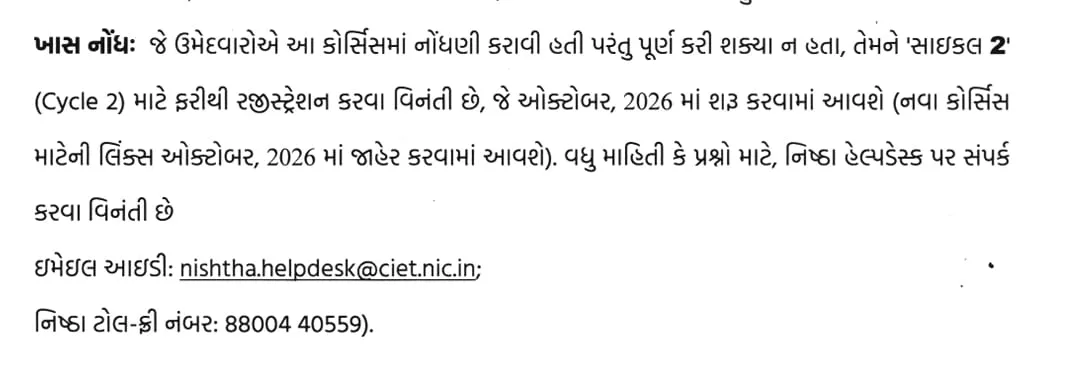
This training is intended for teachers teaching from Balvatika to Standard 5, along with head teachers, CRC coordinators, BRC coordinators and BRP–NIPUN personnel. Participants should use their own DIKSHA account so that course progress and completion details are recorded correctly.
- NISHTHA Training 2026: DIKSHA Course, Login, Eligibility & Certificate
- Navodaya Vidyalaya Class 11 Admission 2027: Apply Online, Last…
- Navodaya Vidyalaya Class 9 Admission 2027: Apply Online, Last…
- Khel Mahakumbh 2026 Apply Online Gujarat – Registration Form,…
- Online Gunotsav Result Tool Check 2026-27 – Calculate Result,…
Important Links
| Service | Official Link |
|---|---|
| DIKSHA NIPUN Training Course | Open Training Course |
| Official DIKSHA Portal | Visit DIKSHA |
| DIKSHA Android Application | Download App |
| DIKSHA Help Centre | Get Support |
NISHTHA Training 2026-27 – Direct Course Links
| NISHTHA Course | Direct Link |
|---|---|
| NISHTHA FLN – English | JOIN COURSE → |
| NISHTHA FLN – Hindi | JOIN COURSE → |
| NISHTHA ECCE – English | JOIN COURSE → |
| NISHTHA ECCE – Hindi | JOIN COURSE → |
| Cyber Hygiene Practices: Personal Digital Devices | JOIN COURSE → |
| Environmental Hazards of Electronic Waste (E-Waste) | JOIN COURSE → |
| Action Research | JOIN COURSE → |
| Catch the Rain – English | JOIN COURSE → |
| Catch the Rain – Hindi | JOIN COURSE → |
Who Should Complete This DIKSHA Training?
According to the information shared with the training link, the course is applicable to the following participants:
- Balvatika teachers
- Standard 1 teachers
- Standard 2 teachers
- Standard 3 teachers
- Standard 4 teachers
- Standard 5 teachers
- Head teachers and school principals
- CRC coordinators
- BRC coordinators
- BRP–NIPUN personnel
Eligible participants should follow the instructions received from their school, CRC, BRC or district authority regarding compulsory participation and the deadline for completion.
What Is the DIKSHA Portal?
DIKSHA stands for Digital Infrastructure for Knowledge Sharing. It is India’s national digital platform for school education and is an initiative of NCERT under the Ministry of Education, Government of India.
The platform provides online courses, teacher professional-development programmes, digital textbooks, videos, interactive learning resources, assessments and certificates. DIKSHA can be accessed through its official website as well as the mobile application.
How to Join the NIPUN Training Course
Step 1: Open the Official Course Link
Click on the training link provided in the Important Links table. It is recommended to open the link in an updated browser such as Google Chrome.
Step 2: Log In to Your Account
Enter the mobile number, email address or other login credentials connected to your DIKSHA account. Use your existing official account whenever possible. Do not create multiple accounts unnecessarily, as course progress may become divided between different accounts.
Step 3: Update Your DIKSHA Profile
Before joining the course, open the profile section and check whether all details are correct. Verify the following information carefully:
- Full name
- State and district
- Block and cluster
- School information
- User role and sub-role
- Board and medium
- Classes and subjects taught
Your name and official details should be entered correctly because they may be used for course records and certificate generation.
Step 4: Join the Course
Return to the course page and select the available Join Course or enrollment option. If the portal asks permission to share profile details with the course administrator, check the displayed information carefully before giving consent.
Step 5: Start Learning
After successful enrollment, click on Start Learning. Open every unit in the prescribed sequence and follow all instructions provided inside the course.
Step 6: Download Course Content in the App
Participants using a mobile phone may download supported course resources inside the DIKSHA application for offline learning. Open the enrolled course, select the required lesson or module and use the available download option.
After downloading, the content can generally be studied without a continuous internet connection. However, participants should reconnect the application to the internet so that learning progress can be synchronized with the DIKSHA server.
Step 7: Complete Every Activity
Watch all videos completely, read the learning material and finish every quiz, assessment or feedback activity shown in the course. Avoid closing a video or learning unit before it is marked complete.
How to Update a DIKSHA Profile
- Log in to the DIKSHA portal or mobile application.
- Open the Profile section.
- Select the edit option under profile or content preferences.
- Choose the correct role and sub-role.
- Verify state, district, block, cluster and school information.
- Select the correct board, medium, classes and subjects.
- Save or submit the updated details.
- Reopen the profile and confirm that the changes have been saved.
Important Instructions for Completing the Training
- Use only your own DIKSHA account.
- Do not complete training from another teacher’s account.
- Confirm that your profile contains the correct school and role.
- Check the enrollment end date and batch end date on the course page.
- Complete every video, module and assessment.
- Keep the app connected to the internet while synchronizing progress.
- Do not uninstall the app before the progress is synchronized.
- Download and preserve the certificate when it becomes available.
How to Check Course Progress
Log in to DIKSHA and open the My Learning section. Select the enrolled course and check the progress displayed on its page. If a completed activity is not reflected, reopen it, allow it to finish completely and then synchronize the application.
When using downloaded content offline, connect the phone to a stable internet connection after completing the lessons. Use the Sync Progress Now option if it appears in the course menu.
How to Download the DIKSHA Course Certificate
- Log in with the same account used to complete the course.
- Open your profile or learner passbook.
- Look for the certificate section.
- Select the completed training course.
- Click on the certificate download option.
- Save the PDF certificate safely on your phone or computer.
Certificate eligibility depends on the conditions specified for the particular course batch. Participants should therefore check the completion percentage, assessment requirement and course deadline displayed on the official page.
What to Do If the Course Does Not Open
- Update Google Chrome or the DIKSHA application.
- Check whether the internet connection is working properly.
- Copy the course URL and open it directly in Chrome.
- Log out and sign in again using the correct account.
- Clear the browser cache if the old page continues to appear.
- Confirm that course enrollment is still open.
- Contact the concerned CRC or BRC if the assigned batch is unavailable.
What to Do If Progress Is Not Updated
First, ensure that all course content has been opened and completed. Connect the device to the internet and use the synchronization option. Wait for the system to update the progress before repeating the course.
If the issue continues, take screenshots showing the completed content, profile details and course progress. Submit the issue through the official DIKSHA Help Centre or report it through the appropriate departmental channel.
Frequently Asked Questions
Is this NIPUN training mandatory?
The information circulated with the link describes the training as compulsory for the listed participants. Teachers and officials should follow the latest directions issued by their school, CRC, BRC or education authority.
Who has to complete the course?
The shared instructions include Balvatika to Standard 5 teachers, head teachers, CRC coordinators, BRC coordinators and BRP–NIPUN personnel.
Can I complete the training on a mobile phone?
Yes. DIKSHA provides an Android application, and supported course content may also be downloaded inside the app for offline learning.
Should I update my profile before joining?
Yes. Participants should verify their name, role, school, district, block, cluster, classes and other professional information before joining the course.
Can I use another person’s DIKSHA account?
No. Every participant should use an individual account because course progress and certificates are connected to that account.
Where can I check my enrolled course?
Log in to DIKSHA and open the My Learning section. The enrolled course and its progress should appear there.
Why is my certificate not showing?
The course may not yet be marked fully complete, the assessment requirement may be pending, progress may not have synchronized or the certificate may still be under generation. Check the official batch requirements and synchronize progress.
All eligible teachers and education personnel should complete the assigned DIKSHA NIPUN training within the timeline prescribed by the competent authority. Before starting, update the DIKSHA profile carefully. Complete all lessons and assessments, synchronize the course progress and preserve the certificate or completion record for future reference.
COMMENTS (0)
Be the first to comment!
Leave a Comment