
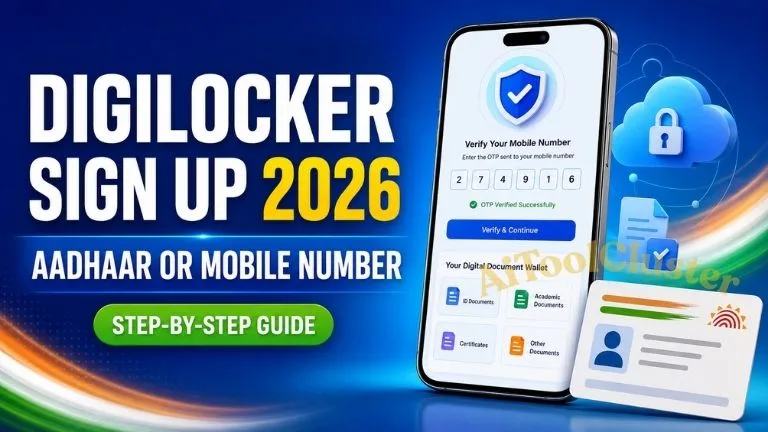
DigiLocker sign up takes only a few minutes when you have an active Indian mobile number and access to the OTP sent to it. You can start account creation with a mobile number or use Aadhaar/VID. For full access to verified documents issued by government departments, education boards and other authorised institutions, completing Aadhaar verification is generally the most useful option.
This updated guide explains how to sign up for DigiLocker on a phone or computer, how DigiLocker sign up with Aadhaar works, what to do when an OTP does not arrive, how to set a safe DigiLocker security PIN, and how to fetch marksheets and other digital certificates after registration.
Important Links
| Important Link | Purpose | Action |
|---|---|---|
| DigiLocker Sign Up | Create a new account through the official portal | Sign Up Now |
| DigiLocker Official Website | Access documents, services, resources and official information | Official Website |
| DigiLocker Download for Android | Install the official app published on Google Play | Google Play |
| DigiLocker Download for iPhone | Install the official app from the Apple App Store | App Store |
| Official DigiLocker Help | Report login, account, OTP or document-related problems | Get Support |
| Verify DigiLocker Document | Check an issued document through its secure QR code | Verify Document |
What Is DigiLocker?
DigiLocker is a secure cloud-based digital document wallet under the Government of India’s Digital India programme. It allows citizens to access, store, share and verify documents and certificates in digital form. Depending on the issuing authority and available records, users may be able to fetch documents such as Aadhaar, driving licence, vehicle registration certificate, PAN-related records, school marksheets, migration certificates, degrees and other government-issued documents.
The main benefit is not simply online storage. When a document is pulled directly from an authorised issuer and appears in the Issued Documents section, its source and authenticity can be verified electronically. This makes DigiLocker useful for digital document verification, online applications, education admissions, recruitment forms and government services online.
Issued Documents vs Uploaded Documents
| Document Type | What It Means | Best Use |
|---|---|---|
| Issued Document | Fetched from an authorised issuer through DigiLocker and digitally verifiable | Official online verification and document submission, subject to the receiving authority’s rules |
| Uploaded Document | A scan or file uploaded by the user to personal cloud document storage | Personal backup and convenient access; it is not automatically the same as an issuer-fetched record |
What You Need Before DigiLocker Sign Up
Keep the following details ready before starting the DigiLocker account creation process:
- An active 10-digit Indian mobile number that can receive an OTP.
- Your correct full name, date of birth and gender.
- An active email address, if requested during registration.
- Your 12-digit Aadhaar number or 16-digit VID if you plan to complete Aadhaar authentication.
- Access to the mobile number linked with Aadhaar when Aadhaar OTP verification is required.
- A memorable but difficult-to-guess 6-digit security PIN.
How to Sign Up for DigiLocker with Mobile Number
If you searched for sign up DigiLocker, sign up for DigiLocker, how to DigiLocker sign up or digilocker gov in sign up, the safest method is the official web registration flow below. Button names may change slightly when the portal interface is updated, but the core identity verification process remains similar.
DigiLocker Sign Up with Aadhaar or VID
Users often type digilocker sign up with aadhar; the official spelling is Aadhaar. DigiLocker currently also provides an Aadhaar/VID route from its login or account-creation flow. A VID is a 16-digit Virtual ID generated through UIDAI that can be used instead of exposing the Aadhaar number in supported authentication flows.
- Open the official DigiLocker account page and choose the Aadhaar or VID option.
- Enter the 12-digit Aadhaar number or 16-digit VID.
- Read the consent and Terms of Service displayed on the official screen.
- Complete the available Aadhaar identity verification method.
- Provide any additional profile details requested by DigiLocker.
- Create or confirm your security PIN and finish account setup.
An Aadhaar-verified account is particularly useful when you need issuer-backed documents. DigiLocker’s current registration screen states that verified documents are available through an Aadhaar-verified account. If your current mobile number is not linked with Aadhaar, you can still begin with mobile-number registration, but some issuer services or Aadhaar authentication steps may remain unavailable until the identity requirement is completed.
Mobile Sign Up vs Aadhaar-Verified Account
| Feature | Mobile Registration | Aadhaar-Verified Account |
|---|---|---|
| Start account creation | Yes, with mobile OTP | Yes, through the official Aadhaar/VID option |
| Identity verification level | Mobile number verified | Identity connected through Aadhaar authentication |
| Access to verified issued documents | May be limited until Aadhaar verification is completed | Designed for accessing verified issuer documents, subject to record availability |
| Best for | Beginning registration and basic account access | Fetching authentic digital certificates and government-issued records |
How to Sign Up on DigiLocker App
The app process is broadly similar to the website. Use the official DigiLocker download for Android or DigiLocker app for iPhone. On the store listing, verify that the official app is associated with the National e-Governance Division rather than a similarly named private developer.
- Install and open the official DigiLocker app.
- Select Sign Up or Create Account.
- Enter your mobile number and verify the OTP.
- Fill in the requested profile details accurately.
- Set a 6-digit security PIN.
- Complete Aadhaar verification if you need verified issued documents.
- Sign in and search for the relevant issuer or document.
How to Download a CBSE Marksheet from DigiLocker
Searches such as digilocker.gov.in CBSE marksheet 2020 and DigiLocker CBSE marksheet 2021 refer to retrieving an academic record from the current DigiLocker platform; there is no need to use an unofficial year-specific website. Availability depends on the records supplied by CBSE and whether your details match the issuer’s database.
- Sign in to your Aadhaar-verified DigiLocker account.
- Open Browse Documents and select the Education category.
- Search for the Central Board of Secondary Education or the relevant education board.
- Select the document type, such as Class X Marksheet, Class XII Marksheet, Passing Certificate or Migration Certificate.
- Enter the roll number, year of passing and other details requested by the issuer.
- Give the required consent and select Get Document.
- Open Issued Documents to view or download the fetched certificate.
If the marksheet cannot be found, first check the roll number, passing year, name and date of birth. DigiLocker cannot create a missing academic record on its own; the authorised board or institution must make the record available. For an unresolved issue, contact the board and raise a ticket through official DigiLocker support.
How to Fetch Other Documents After Sign Up
Once DigiLocker account creation and identity verification are complete, the general retrieval process is straightforward:
- Sign in using your registered mobile number, username or other option shown on the current portal.
- Open Browse Documents.
- Choose a category such as Transport, Education, Central Government or State Government.
- Select the authorised issuer.
- Choose the required document type.
- Enter the exact record details requested and provide consent.
- Select Get Document and check the Issued Documents section.
Not every issuer provides every document or every year of record. A failed search does not always mean the account has a problem. It may mean that the issuer has not supplied that record, the entered details do not match, or the service is temporarily unavailable.
DigiLocker Security PIN: Create, Use and Recover It Safely
The 6-digit DigiLocker security PIN protects account access alongside mobile or identity verification. Treat it like a banking or payment-app PIN even though DigiLocker is not a banking app.
- Do not use 123456, 000000, your birth date or the last digits of your mobile number.
- Do not save the PIN in an unprotected screenshot, chat or contact name.
- Never share it with a person claiming to be from customer support.
- Use the official Forgot security PIN or account-recovery flow if you cannot remember it.
- Do not repeatedly guess the PIN, as security controls may temporarily restrict access.
During recovery, DigiLocker may ask for identity details and OTP verification. Enter this information only on the official website or app. If the recovery screen does not work, submit a ticket through official support instead of using a third-party service.
Common DigiLocker Sign-Up Problems and Solutions
| Problem | Likely Reason | What to Do |
|---|---|---|
| Mobile OTP not received | Weak network, SMS delay, incorrect number or repeated requests | Check the number and signal, wait for the resend timer, then request one fresh OTP |
| Aadhaar OTP not received | The mobile number may not be linked with Aadhaar or the service may be delayed | Confirm the linked mobile status and retry later through the official flow |
| Account already exists | The mobile number or identity may already be registered | Use Sign In or Forgot PIN/Username instead of creating a duplicate account |
| Details do not match | Name, date of birth, roll number or other details differ from issuer records | Enter details exactly as printed on the source document and contact the issuer if its record is wrong |
| Document not found | The issuer may not have uploaded that year or record | Check issuer availability, retry with correct details and contact the board or department when necessary |
| Page or app is not working | Temporary maintenance, outdated app, cache or connection issue | Update the official app, switch networks, retry later or use the official website |
Is DigiLocker Safe?
DigiLocker is designed for secure storage, sharing and verification of digital documents. Its official security information explains that issued documents are digitally signed to support authenticity and integrity. However, user behaviour remains an important part of data security and cybersecurity.
- Check the website domain before entering Aadhaar, mobile number or OTP.
- Install only the official app from Google Play or the Apple App Store.
- Keep your phone screen lock and app security enabled.
- Avoid signing in on a public computer or unknown Wi-Fi network.
- Do not forward a document-sharing link unless you trust the recipient.
- Review the information requested before giving consent to a service.
- Sign out after using DigiLocker on a shared device.
For online document management, an issuer-fetched certificate is usually more useful than a photograph or scan because its authenticity can be checked. Still, always follow the rules of the authority receiving the document.
How to Delete DigiLocker Account
People searching for how to delete DigiLocker account should avoid unofficial instructions that promise instant deletion. Account controls and identity-linked record policies can change. First check the current profile or settings section in the official app or website. If a clear closure option is not available, submit a request through DigiLocker Support and follow the identity-verification instructions provided there.
Uninstalling the mobile app does not necessarily delete the DigiLocker account or the issuer records connected to it. Before requesting closure, download any documents you may need and understand whether account deletion, deactivation and removal of user-uploaded files are treated as separate actions under the current policy.
Benefits of Creating a DigiLocker Account
- Anytime access: View available certificates and records without carrying every physical document.
- Authentic records: Fetch digital certificates from participating authorised issuers.
- Faster applications: Use supported documents for recruitment, education and government-service workflows.
- Online verification: Issued documents can carry secure verification features such as a QR code.
- Reduced risk of loss: Digital access can help when the physical copy is misplaced or damaged.
- Paperless document management: Store and share records more efficiently where electronic documents are accepted.
Related Guides on AIToolCluster
After completing DigiLocker registration, these AIToolCluster guides may help with education, recruitment and digital identity tasks:
Frequently Asked Questions
How to sign up in DigiLocker?
Open the official DigiLocker sign-up page, enter an active Indian mobile number, verify the OTP, provide the requested details and create a 6-digit security PIN. Complete Aadhaar verification if you want to access verified issued documents.
How to DigiLocker sign up with Aadhaar?
Select the Aadhaar or VID option in the official DigiLocker account flow, enter the requested number, read the consent and complete official identity verification. Use only a digilocker.gov.in page and never share the Aadhaar OTP.
How to sign up for DigiLocker without Aadhaar?
You can begin account creation with a valid Indian mobile number. However, DigiLocker indicates that Aadhaar verification is needed for access to verified documents, so a mobile-only account may have limited issuer-document functionality.
How to sign up on DigiLocker from a computer?
Use a modern browser to open the official sign-up page, enter your mobile number and complete OTP verification. The account can later be accessed through the official mobile app using the same registered credentials.
Is DigiLocker sign up free?
Yes. Creating and using a citizen DigiLocker account is free. Do not pay a third-party website or agent for registration.
Can I use DigiLocker if my mobile number is not linked with Aadhaar?
You can create an account with mobile-number verification, but Aadhaar-linked verification or another official authentication method may be required for verified issued documents. Follow the current instructions shown on the official portal.
What is a DigiLocker security PIN?
It is a 6-digit PIN used as an additional account-security step. Choose a PIN that cannot be easily guessed and never share it with another person.
Are DigiLocker documents valid?
Documents fetched from an authorised issuer and stored under Issued Documents are digitally verifiable. Acceptance can depend on the applicable law, notification and the receiving organisation’s process, so check the requirement for your specific application.
Why is my marksheet not showing in DigiLocker?
The board or institution may not have made that record available, or the entered details may not match its database. Recheck the issuer, roll number, year and personal details, then contact the issuing board if the record remains unavailable.
Can I create two DigiLocker accounts?
A duplicate account can create identity and document-matching problems. If the system says an account already exists, recover the existing account through the official sign-in or security-PIN recovery flow instead of registering again.
Official Sources
- DigiLocker Official Website
- Official Sign-Up Page
- DigiLocker Frequently Asked Questions
- DigiLocker Terms of Service
- National Academic Depository Student Guide


COMMENTS (0)
Be the first to comment!
Leave a Comment