
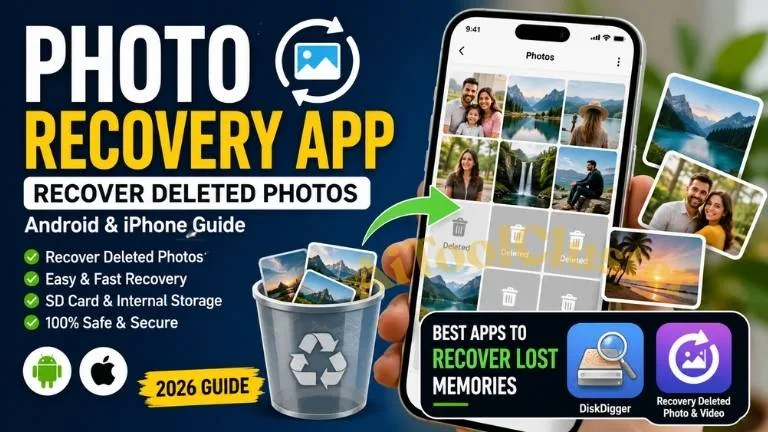
DiskDigger Photo/File Recovery: Recover Deleted Photos, Videos & Files on Android
DiskDigger Photo/File Recovery is an Android recovery app designed to help users find and recover deleted photos, images, videos and other files from internal storage or an external memory card. It can be useful when an important photo or file has been accidentally deleted and is no longer visible in the normal gallery or file manager.
Before using any recovery application, users should first check the phone's built-in Trash, Recycle Bin or Recently Deleted folder. If the deleted file is not available there, a recovery tool such as DiskDigger may be worth trying. However, recovery is not guaranteed because the deleted data may already have been overwritten by new data.
DiskDigger Photo/File Recovery – Overview
| Particular | Details |
|---|---|
| App Name | DiskDigger photo/file recovery |
| Developer | Defiant Technologies, LLC |
| Platform | Android |
| Purpose | Deleted photo, video and file recovery |
| Storage | Internal memory and external memory card |
| Non-Rooted Device | Limited search |
| Rooted Device | Deeper memory search capabilities |
| Current Google Play Listing | 100M+ downloads |
| Latest Listed Update | 21 August 2026 |
What is DiskDigger Photo/File Recovery?
DiskDigger is a data recovery application developed by Defiant Technologies, LLC. According to its current Google Play listing, the app can search for lost photos, images, videos and other files on internal storage or an external memory card. It can also allow recovered files to be saved to another folder or uploaded to supported cloud and sharing services. :contentReference[oaicite:1]{index=1}
The app works differently depending on whether the Android device is rooted. On a non-rooted phone, DiskDigger performs a limited search using areas such as existing storage, thumbnail caches and databases. On rooted devices, it can search more extensively through the device's memory. :contentReference[oaicite:2]{index=2}
How to Recover Deleted Photos Using DiskDigger?
If you have accidentally deleted a photo, you can try the following general process:
- Open the official Google Play Store.
- Search for DiskDigger photo/file recovery.
- Install the app developed by Defiant Technologies, LLC.
- Open DiskDigger after installation.
- Allow the required storage access requested by the application.
- Start the available photo search or scan.
- Wait while the application searches for recoverable images.
- Review the photos shown in the scan results.
- Select the files you want to recover.
- Use the recovery option and save the recovered files to a suitable location.
The exact options shown can vary according to Android version, device manufacturer and whether the phone is rooted.
Download DiskDigger Photo/File Recovery
For security, users should download the application from the official Google Play listing rather than installing APK files from unknown third-party websites.
Download DiskDigger from Google Play
The official Google Play listing identifies the developer as Defiant Technologies, LLC and currently shows more than 100 million downloads.
Here are the best ways and apps to recover deleted photos directly from your phone:
1. First, Check Built-in Options (No App Needed)
-
Google Photos: Open app > Go to Library / Collections > Tap Trash or Bin. Deleted photos stay here for up to 60 days.
-
Phone Gallery: Open default Gallery app > Go to Albums or Menu > Check Recently Deleted or Trash (photos stay for 30 days).
2. Best Photo Recovery Apps for Android
-
DiskDigger Photo Recovery
-
Highlights: The most popular and easiest app to use; works without rooting your phone.
-
How to use: Install from Play Store > Tap Start basic photo search > Select photos and tap Recover.
-
-
Dumpster
-
Highlights: Acts as a recycle bin for your phone. It automatically backs up newly deleted photos and videos for quick restoration.
-
-
EaseUS MobiSaver
-
Highlights: Scans both internal storage and SD cards to recover deleted photos, videos, and WhatsApp data.
-
-
Dr.Fone - Photo & Data Recovery
-
Highlights: An advanced recovery tool capable of restoring deleted images, videos, and contacts.
-
Pro Tip: Stop taking new photos or downloading large files immediately after accidental deletion. This prevents the deleted photo data from being overwritten, giving you the highest chance of full recovery.
Can DiskDigger Recover Deleted Photos Without Root?
Yes, DiskDigger can perform a limited search on a non-rooted Android device. According to the official Google Play description, the non-rooted version searches existing internal storage, thumbnail caches, databases and other accessible areas. The results can therefore be different from what a deep storage scan on a rooted device might find. :contentReference[oaicite:4]{index=4}
Users should not root a phone simply because they want to recover one deleted photo. Rooting can involve technical risks and may affect device security or warranty conditions depending on the manufacturer. It is safer to try the phone's built-in recovery options and the available non-rooted search first.
Why Are Some Deleted Photos Not Found?
Deleted files do not always remain recoverable. When new photos, videos, apps or other data are written to the same storage area, the previous data can become unavailable for recovery.
This is why recovery results can vary considerably between devices. A recovery application may find some deleted images, thumbnails or fragments while failing to find the original full-resolution file.
Important Steps After Accidentally Deleting a Photo
- Avoid unnecessary use of the affected storage.
- Do not fill the phone with new photos and videos.
- Check Google Photos or your gallery's Trash/Recently Deleted folder first.
- Check whether the photo exists in a cloud backup.
- Try recovery as soon as reasonably possible.
- Save recovered files to a different location when possible.
Check Google Photos Before Using a Recovery App
If your phone automatically backed up photos to Google Photos, the deleted image may still be available in the application's Trash. The exact retention period depends on the circumstances and Google Photos' current policies, so users should check the Trash directly rather than relying on a fixed number of days.
This is often the simplest recovery option because it does not require scanning the phone's storage.
Check Your Phone Gallery's Recently Deleted Folder
Many Android phone manufacturers provide a Recently Deleted, Trash or similar folder in their gallery application. Open the Gallery app and look under Albums, Menu or the relevant storage-management section.
The availability and retention period of this feature can differ between manufacturers and Android gallery applications. If the deleted photo is still there, restoring it from the phone's own recovery folder is generally simpler than using a third-party recovery application.
DiskDigger Basic Search vs Deeper Recovery
| Feature | Non-Rooted Device | Rooted Device |
|---|---|---|
| Photo Search | Limited search available | More extensive search |
| Internal Storage | Limited access/search | Broader memory search |
| Thumbnail/Cache Search | Available as part of limited search | Available |
| Other File Types | More limited | Broader recovery capability |
These differences are based on the application's current official Google Play description.
What Files Can DiskDigger Recover?
The current DiskDigger listing describes recovery support for photos, images, videos and other non-media files. The Pro version listing additionally specifies a wider range of supported file formats, including several document, audio, video and image formats. :contentReference[oaicite:6]{index=6}
For ordinary photo recovery, users should first focus on the image formats that the application can detect on their particular device rather than assuming that every deleted file can be recovered.
DiskDigger Photo/File Recovery – Important Tips
- Use the official Google Play listing for installation.
- Check Trash or Recently Deleted folders first.
- Check cloud backups before performing a storage scan.
- Reduce unnecessary phone usage after accidental deletion.
- Do not assume every scanned image is a deleted photo; some results may come from existing files, caches or thumbnails.
- Save recovered files to a safe location.
- Do not share sensitive recovered files with unknown applications or websites.
Is DiskDigger Guaranteed to Recover Every Deleted Photo?
No. DiskDigger is a recovery tool, not a guaranteed undelete service. The official app description explains how it searches accessible storage and memory, but successful recovery depends on the condition and accessibility of the underlying data.
If the storage area containing a deleted file has already been reused for new data, the original file may no longer be recoverable. Therefore, users should avoid treating any recovery app as a guaranteed solution.
DiskDigger Photo/File Recovery – Pros and Limitations
| Advantages | Limitations |
|---|---|
| Can search for lost photos | Recovery is not guaranteed |
| Works on non-rooted devices with limited search | Non-rooted searches can be limited |
| Supports internal and external storage | Results depend on device and storage conditions |
| Can recover different types of files | Some recovered results may be thumbnails or existing files |
| Available through Google Play | Some advanced capabilities require different access conditions |
DiskDigger Photo/File Recovery – Important Links
| Important Link | Open |
|---|---|
| DiskDigger Photo/File Recovery | Google Play Store |
| DiskDigger Official Android Instructions | Open Guide |
More Android Apps and Technology Updates
For more useful Android apps, digital tools, education technology, government services and technology guides, visit Aitoolcluster.com.
You can also join our WhatsApp Channel for new app guides, education updates, government notifications and useful digital information.
Join Aitoolcluster WhatsApp Channel
Frequently Asked Questions
What is DiskDigger Photo/File Recovery?
DiskDigger is an Android application designed to search for and recover lost or deleted photos, videos and other files from accessible internal storage or external memory cards.
Can DiskDigger recover deleted photos without root?
Yes. The official listing states that DiskDigger can perform a limited search on non-rooted devices. Rooted devices can provide broader access for deeper searches. :contentReference[oaicite:8]{index=8}
Can DiskDigger recover every deleted photo?
No. Successful recovery depends on the device, storage system and whether the deleted data has been overwritten. No recovery application can guarantee that every deleted photo will be restored.
Should I use DiskDigger immediately after deleting a photo?
If the photo is important, it is sensible to avoid unnecessary storage activity and first check the phone's Trash, Recently Deleted folder and cloud backups. This can reduce the chance of further changes to the storage area where the deleted data may exist.
Is DiskDigger available on Google Play?
Yes. The official Google Play listing is published by Defiant Technologies, LLC. The current listing shows 100M+ downloads and was updated on 21 August 2026. :contentReference[oaicite:9]{index=9}
Can DiskDigger recover videos and documents?
The official listing says DiskDigger can search for photos, images, videos and other non-media files. The exact recovery capability depends on the device and access available to the application. :contentReference[oaicite:10]{index=10}
DiskDigger Photo/File Recovery can be a useful option for Android users who have accidentally deleted photos or other files. Before using a recovery app, always check the phone's Recently Deleted or Trash folder and any available cloud backup.
For users who still need recovery, DiskDigger provides a limited search on non-rooted devices and broader search capabilities on rooted devices. However, recovery is never guaranteed, so important files should always be backed up regularly.
Disclaimer: This article is for informational and educational purposes only. App features, permissions, compatibility and recovery capabilities may change with future updates. Always download apps from trusted official sources and review the permissions requested before installation.




COMMENTS (0)
Be the first to comment!
Leave a Comment