
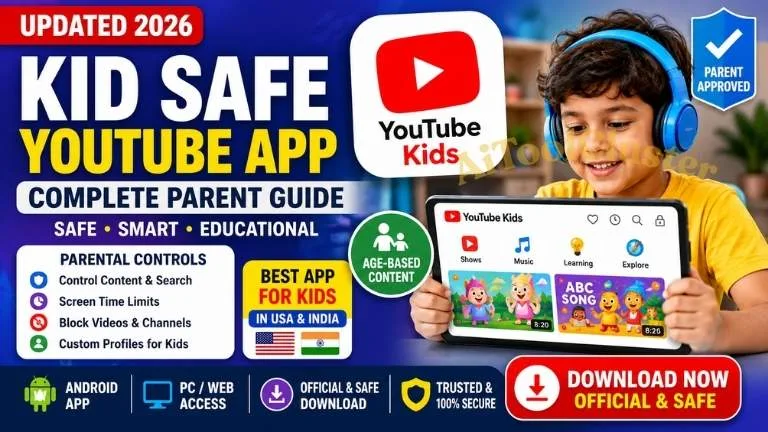
Updated: Kid Safe YouTube App 2026 – Finding a reliable kid safe YouTube app has become increasingly important for parents in the United States and India. Children use video platforms for entertainment, school projects, reading practice, science lessons, music and educational content, but unrestricted video recommendations can create concerns about age-appropriate content, screen time and online safety.
The official YouTube Kids app is designed to provide a simpler, child-focused viewing experience with parental controls. Parents can manage content settings, Search, autoplay, watch history and blocking features, while some families may eventually move older children to a supervised YouTube experience. YouTube currently provides parental controls through YouTube Kids, Family Link and Family Center.
In this guide, we explain how the kid safe YouTube app works in 2026, where to download it safely, how to use it on Android and PC, how parental controls work, what parents should check before giving a child independent access, and how educational apps such as Google Read Along can complement video learning.
Quick Answer: YouTube Kids is the official child-focused YouTube experience. It offers parental controls such as content-level settings, Search controls, blocking and time-management features. However, no automated content system should be treated as a complete replacement for parental supervision.
What Is a Kid Safe YouTube App?
A kid safe YouTube app is a child-oriented video experience designed to make content discovery more appropriate for younger users. Instead of giving children unrestricted access to the complete YouTube ecosystem, parents can configure settings based on the child's age and maturity.
The important distinction is that kid-safe does not mean risk-free. Parents should think of the app as one part of a broader digital safety strategy.
YouTube Kids provides controls that allow parents to adjust content levels, turn Search on or off, block content and manage other settings.
YouTube Kids App 2026: Why Parents Use It
For many families, YouTube is not only entertainment. Children also use online videos for educational purposes such as mathematics explanations, science experiments, reading practice, language learning and school-related projects.
The challenge is finding the right balance between educational access and parental control.
YouTube Kids can help parents create a more controlled environment by providing tools such as:
- Age-appropriate content settings
- Search controls
- Content blocking
- Parent-controlled settings
- Watch-history controls
- Autoplay controls
- Screen-time management through available family tools
- Separate child profiles and personalized settings
Current YouTube documentation confirms that parents can manage YouTube Kids settings through Family Center and Family Link, including content-level settings and Search controls.
Kid Safe YouTube App Download – Official Method
If you are searching for kid safe YouTube app download, the safest approach is to use the official app distribution channel rather than downloading an unknown APK from a third-party website.
Parents should verify the app publisher and avoid websites offering modified or unofficial versions of children's applications. A search result saying “latest APK” does not automatically mean the file is trustworthy.
Why Avoid Random Kid Safe YouTube APK Files?
Third-party APK pages can create several practical problems:
- The file may not be the latest official version.
- The package could have been modified.
- Parents may not know the true source of the software.
- Updates and security fixes may not arrive normally.
For a child's device, the official app store is generally the better starting point.
Kid Safe YouTube App for Android
The kid safe YouTube app for Android is particularly useful for families using Android phones and tablets. But installation is only the first step.
Before allowing independent use, parents should review the child's profile and available controls.
- Install the official YouTube Kids app.
- Create or select the appropriate child profile.
- Choose an appropriate content level.
- Review Search settings.
- Review autoplay settings.
- Block unsuitable channels or videos when necessary.
- Set reasonable screen-time boundaries.
YouTube's current parental-control documentation confirms that parents can control content settings, Search, blocking and other YouTube Kids options.
Kid Safe YouTube App for PC
Parents searching for a kid safe YouTube app for PC should understand that a separate unofficial Windows APK is not necessary simply to access the child-focused YouTube experience.
YouTube provides a YouTube Kids web experience, while parental settings can be managed through supported Google family-management tools.
This can be useful for:
- Family laptops
- Home desktop computers
- Chromebooks
- Educational computer environments
- Large-screen learning sessions
Practical tip: Always verify which YouTube experience the child is actually using. A computer browser can access the normal YouTube website as well, so simply opening a browser does not automatically create a child-safe environment.
YouTube Kids Login and Parent Setup
YouTube Kids login and profile setup are important because parental settings need to be associated with the correct child profile.
Parents can manage YouTube Kids settings from YouTube Kids itself and, where supported, through Family Link and Family Center. Available controls include content settings, Search, blocking and history-related options.
If multiple children use the same household device, separate profiles can make the experience easier to manage because different children may need different content settings.
How YouTube Kids Parental Controls Work
One of the strongest reasons parents choose YouTube Kids is the range of available parental controls.
1. Content Level Settings
Parents can select an appropriate content level for their child. The goal is to give younger children a narrower experience while allowing older children access to a broader range of age-appropriate material.
2. Search Control
Parents can turn Search on or off. Turning Search off can reduce independent content discovery and is worth considering for younger children. YouTube currently lists Search as a parent-controlled setting.
3. Block Content
Parents can block content they do not want their child to access. This becomes particularly useful when a recommendation appears that does not match the family's preferences.
4. Autoplay
Autoplay can influence how long children continue watching. Parents should review the autoplay setting instead of assuming that the first educational video will be the last one watched.
5. Time Management
YouTube Kids includes a timer feature that can help parents establish viewing boundaries.
Is YouTube Kids Really Safe for Children?
This is one of the most important questions parents ask.
YouTube Kids is designed to provide a safer and simpler experience for children, but no automated filtering system should be considered perfect.
YouTube itself describes the service as a safer and simpler experience and provides parents with controls such as blocking, approved-content access, Search management, history controls and timers.
The better mindset is therefore:
Technology + parental controls + occasional parent review = stronger child safety.
Parents should periodically review what their children are watching, especially when children begin searching independently.
YouTube Kids Videos: Choosing Better Educational Content
Not every video that looks educational necessarily provides meaningful learning value.
When selecting YouTube Kids videos, parents can look beyond colorful thumbnails and consider:
- Does the video actually teach something?
- Is the language appropriate for the child's age?
- Does it encourage active learning?
- Is the content repetitive or unnecessarily stimulating?
- Does the child understand the information?
- Would a reading app or educational software be more useful for this particular skill?
This last question is often overlooked. A child who needs reading practice may benefit more from an interactive literacy application than from watching another reading-related video.
YouTube Kids Channel: What Parents Should Check
Searching for a YouTube Kids channel can be useful, but parents should avoid assuming that an entire channel will always remain appropriate.
Review recent uploads and look for:
- Age-appropriate topics
- Educational quality
- Clear language
- Reasonable video length
- Limited sensational content
- Useful learning outcomes
A channel that was suitable six months ago can change its content strategy. Periodic review is therefore more reliable than one-time approval.
YouTube Kids vs Supervised YouTube
As children become older, parents may eventually consider moving from YouTube Kids to a supervised YouTube account.
YouTube currently provides supervised experiences that allow parents to choose a content level and manage aspects of the child's viewing journey. Family Link and Family Center can be used to manage supported controls.
| Option | Best Use | Parent Focus |
|---|---|---|
| YouTube Kids | Younger children | Stronger child-focused controls |
| Supervised YouTube | Older children ready for broader access | Gradual transition and content management |
The right choice depends on the child's age, maturity and ability to make sensible online decisions.
Best Learning Combination: YouTube Kids + Reading Apps
Parents sometimes try to make one application solve every learning problem. That is not always the best strategy.
Video platforms are excellent for visual explanations, demonstrations and educational entertainment. Reading applications can be better for active literacy practice.
For families looking for a dedicated reading tool, see our detailed guide:
Recommended Reading:
The Best Read Along Apps for Kids in 2026Explore reading-focused apps, download options, offline learning, classroom use, privacy considerations and practical ways to build a daily reading habit.
Our Read Along guide also explains how children can practice reading aloud with an interactive reading assistant and how families can use reading tools at home or in educational settings.
Important Links for Parents
| Resource | Purpose | Official / Related Link |
|---|---|---|
| YouTube Kids | Child-focused video experience | Google Play |
| YouTube Kids Help | Parental controls and settings | Google Help |
| Family Controls | Manage supervised child accounts | YouTube Help |
| Read Along Apps | Reading and literacy tools | Read Our Guide |
Common Mistakes Parents Make
Downloading an Unofficial APK
Searching for a kid safe YouTube app APK may lead users to third-party download pages. For a child's device, the official distribution source is the better option.
Leaving Default Settings Unchecked
Parents should review content settings, Search, autoplay and available parental controls rather than assuming the default configuration is ideal for every child.
Using One Profile for Every Child
Children of different ages may require different content settings. Separate profiles can make parental management more practical.
Using YouTube as a Babysitter
A child-safe viewing environment should support a healthy routine rather than replace interaction, reading, outdoor activities or family time.
High-Value Keywords for This Topic
This article naturally targets a combination of informational and commercial-intent search terms rather than repeating one keyword throughout the page.
Primary Keyword: Updated Kid Safe YouTube App 2026
Secondary Keywords:
- YouTube Kids App
- Kid Safe YouTube App Download
- Kid Safe YouTube App for Android
- Kid Safe YouTube App for PC
- YouTube Kids Download
- YouTube Kids Channel
- YouTube Kids Videos
- YouTube Kids Login
- Parental Control YouTube App
- Safe Video Apps for Kids
- Educational Apps for Kids
- Kids Learning Apps
- Online Learning Apps for Children
- Reading Apps for Kids
- Literacy Apps for Children
- Educational Technology for Kids
- Digital Learning Apps
- Child Friendly Learning Apps
Commercial-Intent Long-Tail Keywords:
- Best educational apps for kids
- Best learning apps for children
- Best reading apps for kids
- Safe educational apps for kids
- Best kids learning software
- Online learning apps for children
- Educational technology apps for parents
- Reading practice apps for children
- Best literacy apps for kids
- Parental control apps for children's devices
Frequently Asked Questions
What is the best kid safe YouTube app in 2026?
YouTube Kids is the official child-focused YouTube experience and provides parental controls designed to help families manage children's viewing.
Where can I download the kid safe YouTube app?
For Android, parents should use the official Google Play listing rather than an unknown APK website.
Can children use YouTube Kids on a PC?
Yes. YouTube provides a YouTube Kids web experience, allowing families to access the child-focused service through a supported browser.
Can parents turn off Search in YouTube Kids?
Yes. Search is one of the settings that parents can manage. Turning it off can provide a more limited discovery experience.
Can parents block YouTube Kids videos?
Yes. YouTube Kids provides blocking controls that allow parents to restrict unwanted content.
Is YouTube Kids completely risk-free?
No online platform should be treated as completely risk-free. YouTube Kids provides additional controls designed for children, but parents should still review settings and viewing habits.
What is better for reading practice: YouTube videos or a reading app?
It depends on the goal. Videos can demonstrate concepts, while a dedicated reading app can provide active reading practice. Parents interested in literacy tools can explore our Best Read Along Apps for Kids in 2026 guide.
Can YouTube Kids help with educational learning?
Yes. Parents can use child-focused educational videos for subjects such as science, mathematics, language learning and general knowledge. However, active learning tools should also be considered when a child needs practice rather than passive viewing.
Final Verdict
The best kid safe YouTube app strategy is not simply installing an app and handing over the device. Parents get better results by combining the right platform with the right settings and a sensible digital routine.
YouTube Kids provides a child-focused environment with parental controls for content levels, Search, blocking and other settings. Families can also use Google's family-management tools to manage supported child accounts.
For children using technology primarily for education, combining video learning with dedicated literacy and learning applications can be even more effective. Our Read Along Apps for Kids in 2026 guide is a useful next step for parents looking specifically for reading-practice tools.
Bottom line: Choose official apps, configure parental controls, use age-appropriate content settings, review what children watch and select learning applications according to the actual skill the child needs to develop.


COMMENTS (0)
Be the first to comment!
Leave a Comment